
You pick up your phone to check the time. Twenty minutes later you're deep in a feed, and you still don't know what time it is.
That's not a character flaw. Social apps, games and news feeds are designed by large teams to keep you there. Relying on willpower alone means fighting that every day. A better plan is to decide once, when you're calm, and let your phone enforce it when you're not.
Three ways to block distractions
Most blocking comes down to three ideas:
- Right now. "I need the next hour. Block everything that pulls me away."
- On a schedule. "Every workday morning, and every night after 10, these apps are closed."
- After a daily limit. "I'm fine with 30 minutes of social media a day. After that, it's done until tomorrow."
Different moments need different tools. A deadline needs "right now". A habit you're building needs a schedule. A habit you're breaking needs a limit.
What iPhone can do already
iOS has Screen Time built in, and it's a good place to start:
- Downtime blocks most apps during a scheduled time.
- App Limits set a daily time budget for an app or a whole category.
- Content & Privacy Restrictions can limit websites.
The catch is that these are easy to dismiss with "Ignore Limit" when you're tired, and they aren't designed around focus sessions. They're a good first step if you just want a nudge.
Lockin: for the moment, the routine and the habit
We're building Lockin for when a nudge isn't enough. It's coming soon to the App Store, and this is what it does.
Lock in now
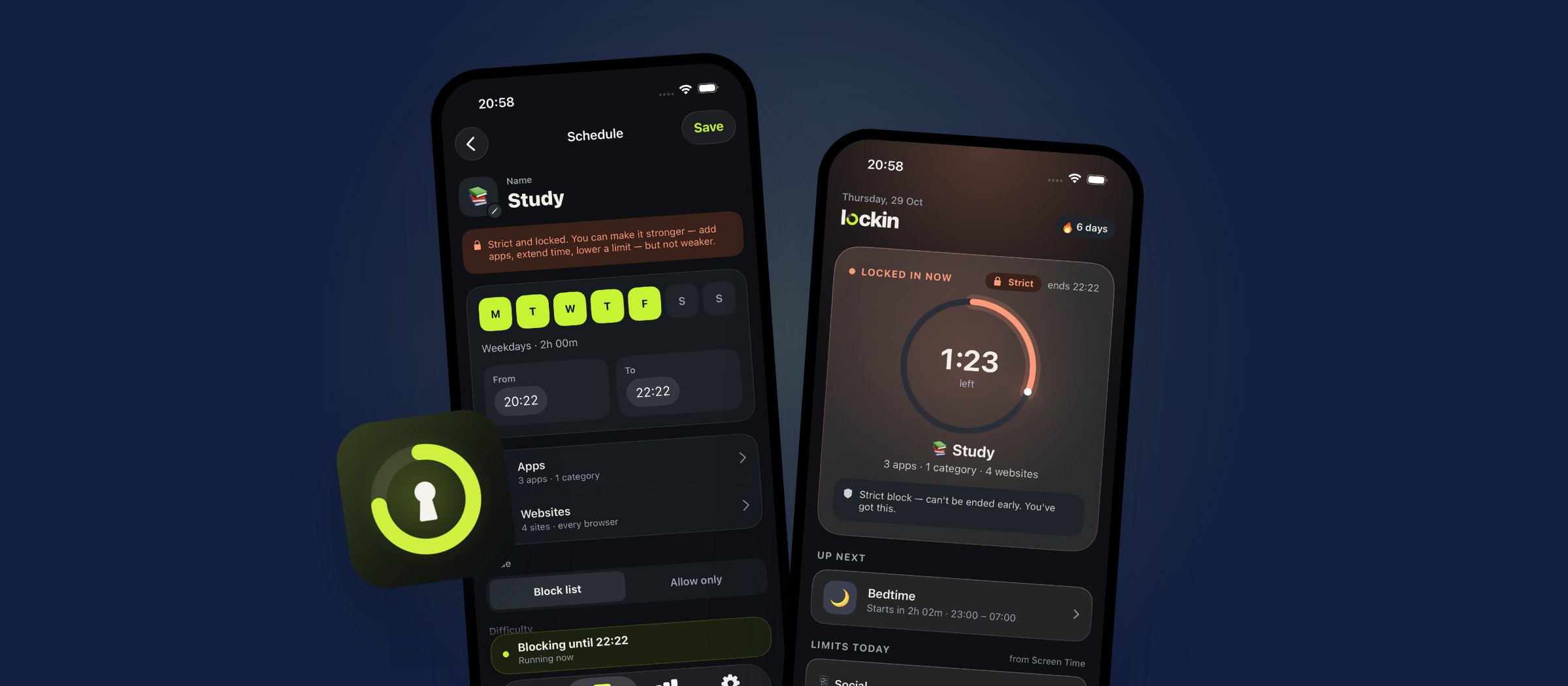
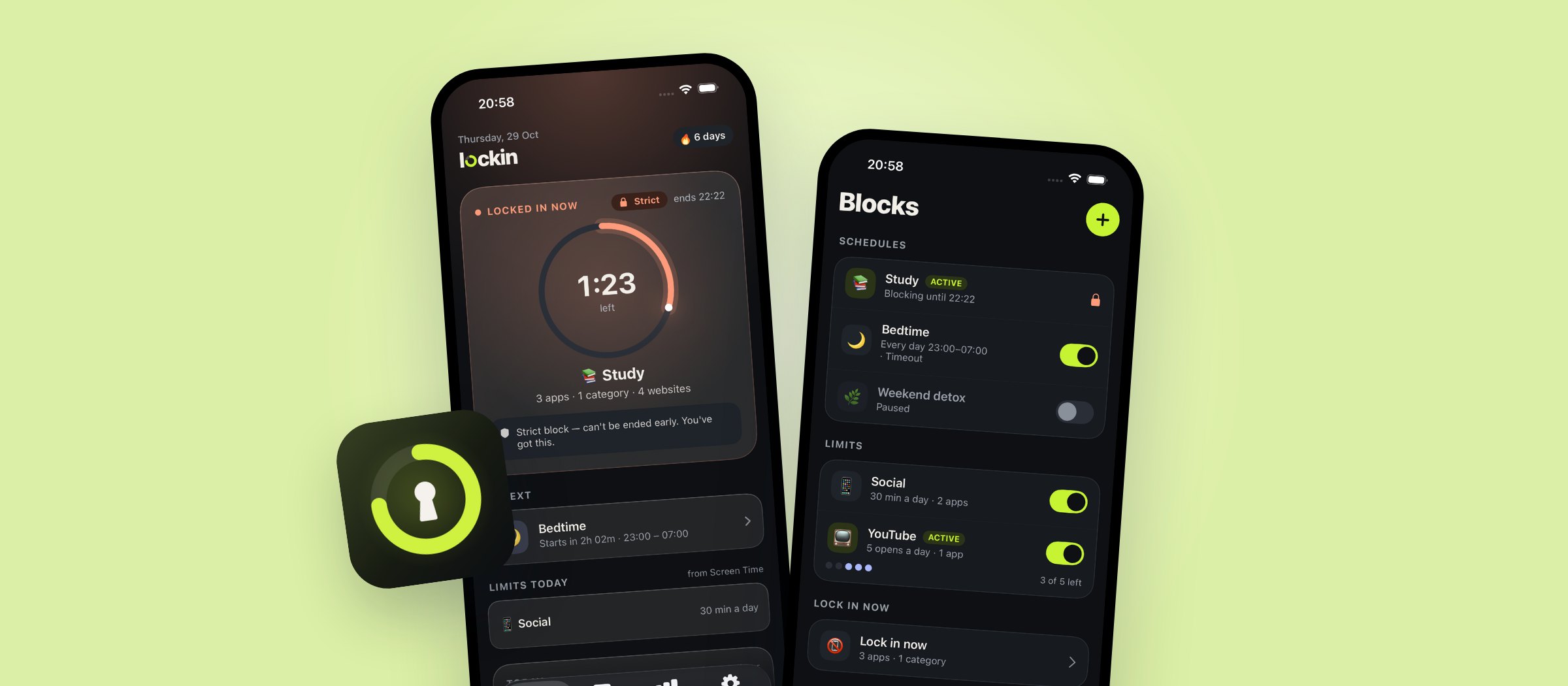
One tap, pick how long, and your distracting apps and websites are gone until the timer runs out.
Schedules
Block the same apps every workday, or every night, without thinking about it. Create one for study, one for work, one for bedtime.
Daily limits
Give yourself a budget, like 30 minutes of social a day. When it's spent, the apps stay closed until midnight.
Websites, too
Block sites in Safari and other browsers, including every subdomain. With the Lockin Safari extension you can also add page and keyword rules.
Strict mode, for when you mean it
Choose how hard it is to give in. Start easy, and turn it up when the habit is stronger than you are. A Strict block can't be ended or edited until the time is up, and it can also stop app deletion.
To be honest about it: iOS always lets the person holding the phone turn off Screen Time access for an app in Settings, and no blocker can prevent that. Strict is built to make giving in take real effort, and that's usually all it takes.
See the time you've taken back
Lockin shows how much time you've protected today, and how it adds up over the weeks. Watching that number grow is a better reward than another scroll.
Private by design
There's no account. Apple's Screen Time gives Lockin anonymous tokens for the apps you pick, never which apps you open or for how long. Your data stays on your iPhone.
A simple setup to start with
- Make a list of your two or three biggest time sinks. Be honest. You know which ones they are.
- Add a schedule for your most important hours, like 9 to 12 on weekdays.
- Add a daily limit for social media that feels fair, not punishing.
- Keep "lock in now" for deadlines.
- After two weeks, look at the time you saved and decide whether to make anything stricter.
The goal isn't to never use your phone. It's to use it on purpose. Lockin will be free to start, with Pro when you're ready, priced well below most blockers (see how the prices compare). See what Lockin will do.