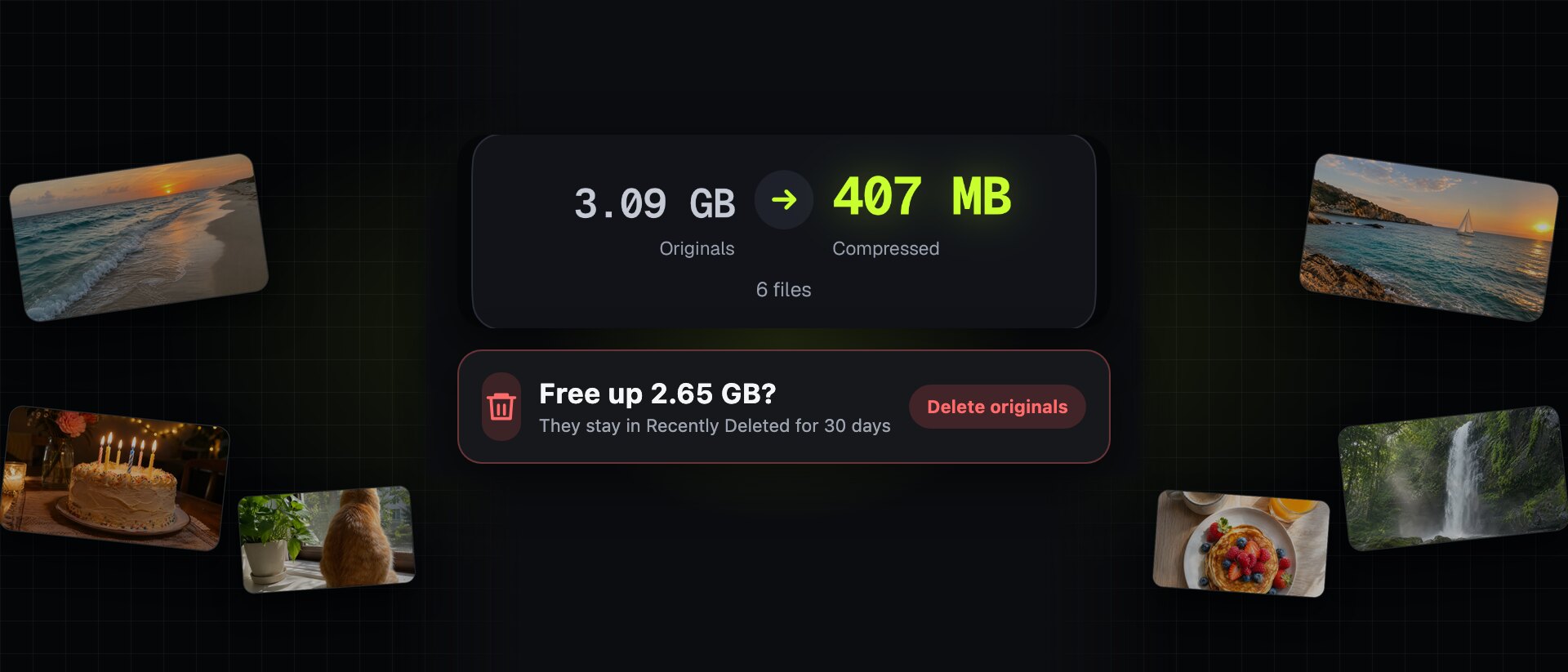

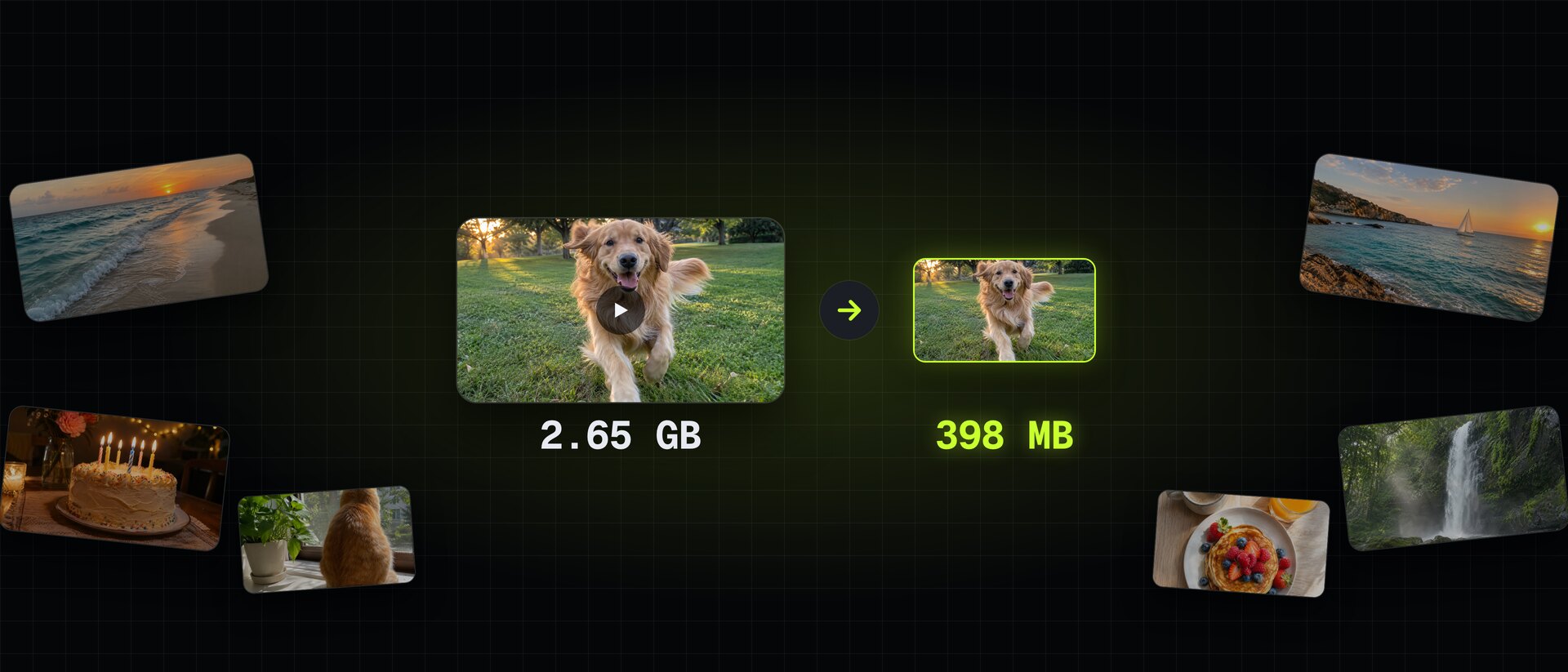
You filmed something great, and now it won't send. The email bounces back, Discord says the file is too big, and WhatsApp takes forever on mobile data. iPhone videos are big: several minutes in 4K can take more than a gigabyte.
The fix is to compress the video: make the file smaller while keeping it good to watch. Here's how to do it on your iPhone, which size to aim for, and how Squish, our new video compressor, does it in a couple of taps.
Why your video is too big to send
Most apps and email services have a size limit for attachments:
- Email: Gmail allows attachments up to 25 MB; iCloud Mail and Outlook.com take about 20 MB. Attachments also grow by roughly a third while they're sent, so a file that's a bit under the limit can still bounce.
- Discord: without Nitro, each file can be up to 20 MB.
- Messaging apps like WhatsApp send big videos slowly, or shrink them for you on the way, in a quality you don't get to choose.
A one-minute 4K video is far above all of these. Compressing it brings it down to a size the app accepts, before you share it.
How to compress a video on iPhone
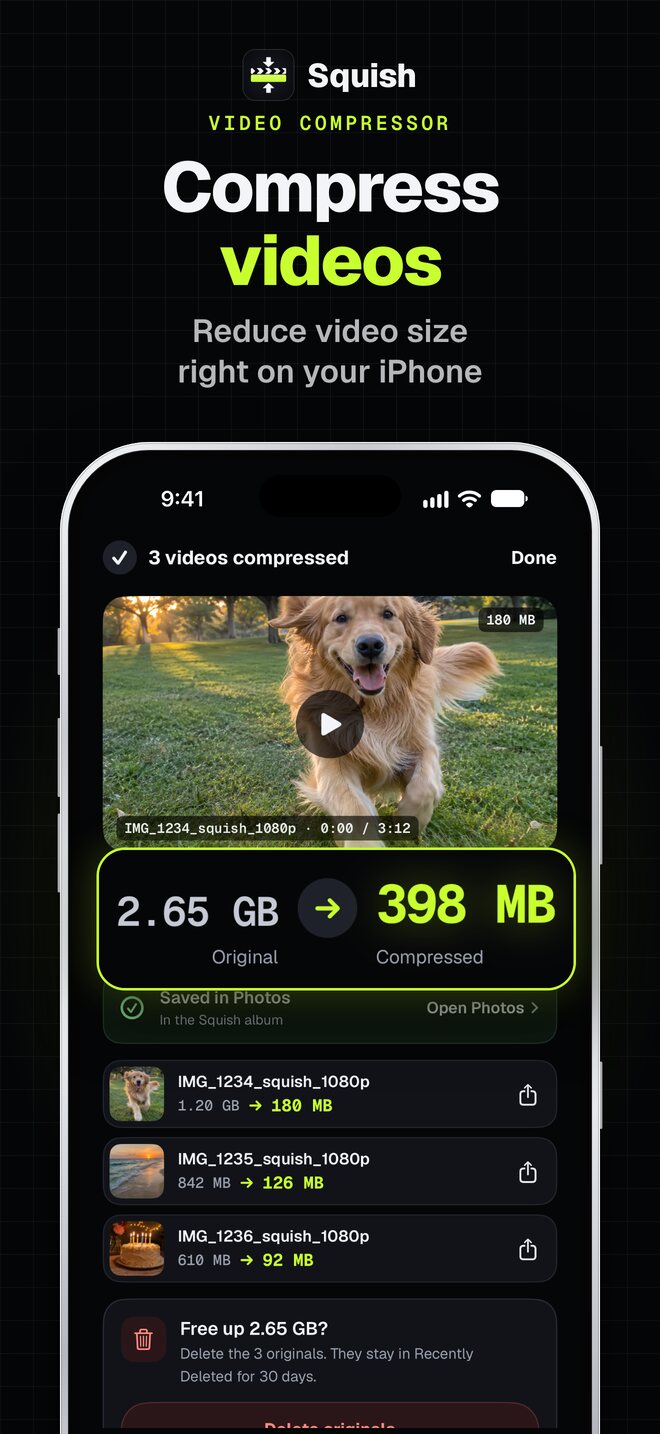
With Squish, it takes three steps:
- Pick your video. Tap Choose videos and select it in Apple's Photos picker. Picking a video doesn't give Squish access to the rest of your library.
- Check the new size. Before you start, Squish shows the size the video has now and the size it will have, so there are no surprises.
- Tap Compress. The smaller copy is saved to a "Squish" album in Photos, ready to share. Your original stays where it was.
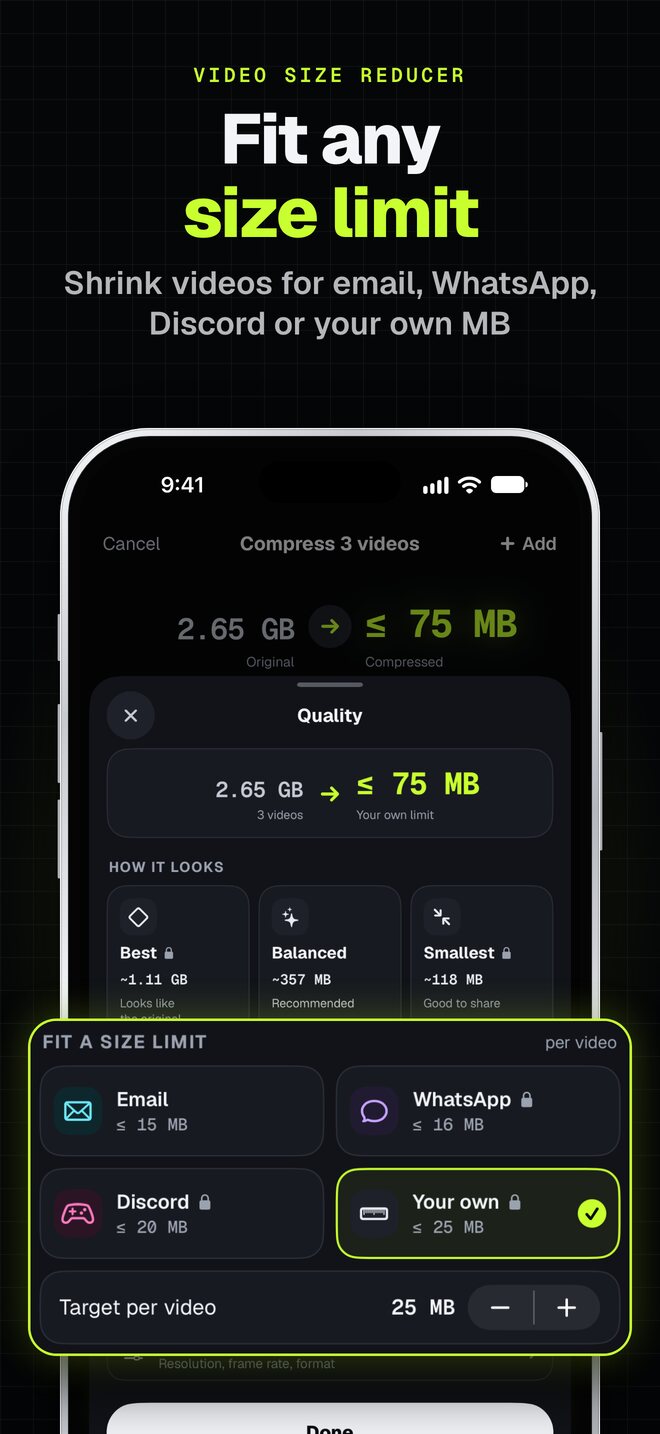
Pick a size limit instead of guessing
Compression settings like bitrate and resolution are hard to guess. Squish lets you choose the result you need instead:
- Email: under 15 MB, so it fits Gmail, iCloud Mail and Outlook with room to spare.
- WhatsApp: under 16 MB, small enough to send quickly even on mobile data.
- Discord: under 20 MB, the free upload limit.
- Your own: any number of MB, for a form, a website or a work tool with its own limit.
Squish works out the right settings and makes the video fit. If you'd rather choose a look than a size, Balanced keeps the video looking good at a much smaller size, Smallest saves the most space and Best keeps the most detail.
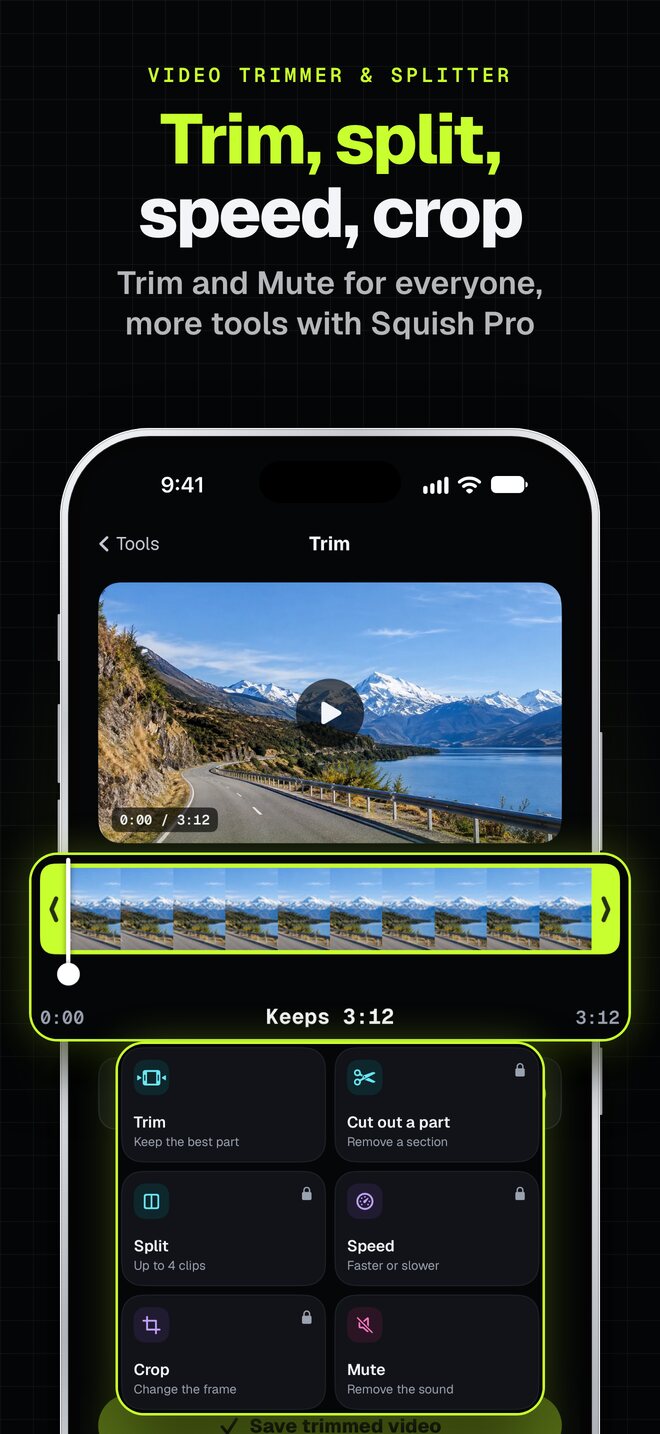
Tip: trim first, then compress
A size limit is shared by every second of the video. Ten seconds under 15 MB look sharp; three minutes squeezed into 15 MB look soft. So if you only need a part of the clip, trim it first. Squish has Trim built in: drag the handles to keep the best part, then compress the shorter clip.
Squish can also cut out a part in the middle, split a video into up to 4 clips, change the speed, crop the frame or remove the sound.
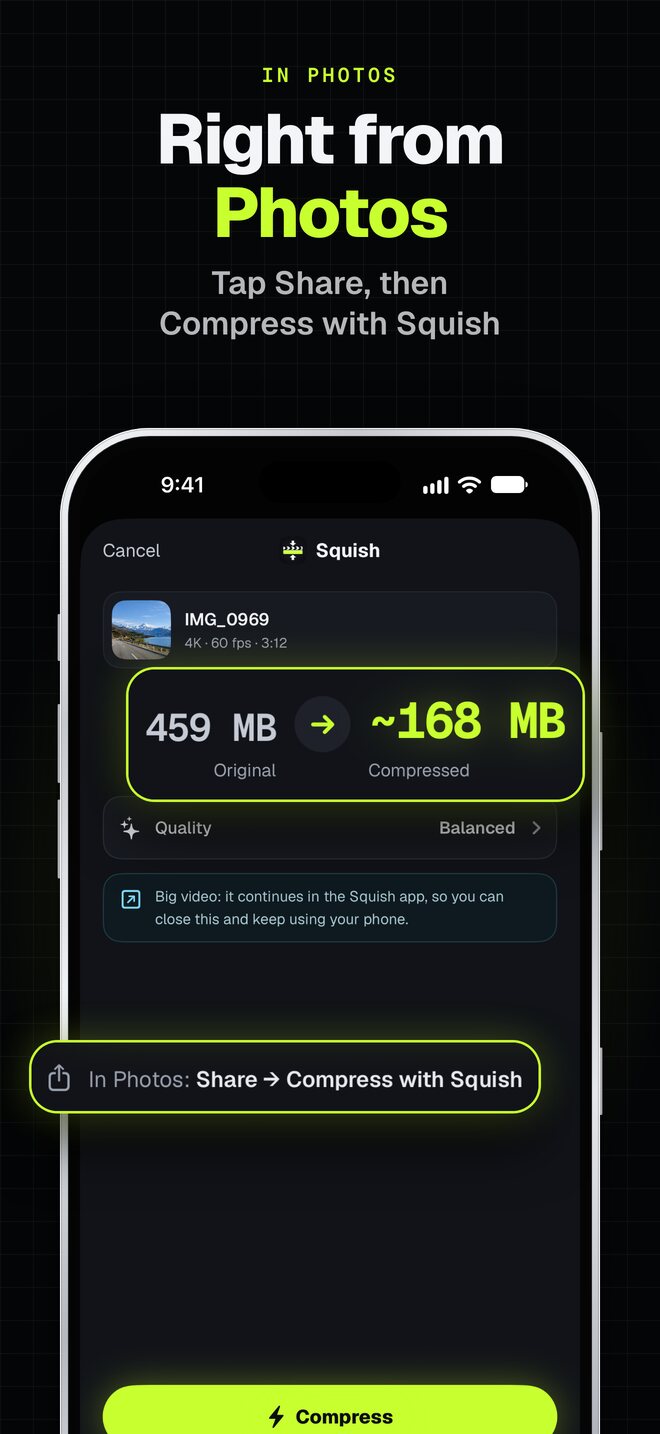
Compress right from Photos
You don't even have to open Squish. In the Photos app, select a video, tap Share, then Compress with Squish. Small videos are done right there; big ones carry on in the app, and with notifications on, Squish tells you when they're finished.
Private, and no watermark
Squish compresses your videos and photos on your iPhone. Nothing is uploaded, there's no account to create, and Squish never adds a watermark to your video.
Free and Squish Pro
Squish is free to download. Everyone can compress one video or photo at a time with Balanced quality, use the Email size limit, Trim and Mute, and compress from Photos. The free version shows ads.
Squish Pro removes the ads and adds many videos at once, Best and Smallest quality, every size limit (WhatsApp, Discord or your own MB), Split, Cut out a part, Speed, Crop, Extract audio, more settings and Shortcuts. It's available yearly, monthly, or as a one-time lifetime purchase.
Try it
Download Squish on the App Store, pick the video that wouldn't send, and see how small it gets. Questions or ideas? Write to us at [email protected].