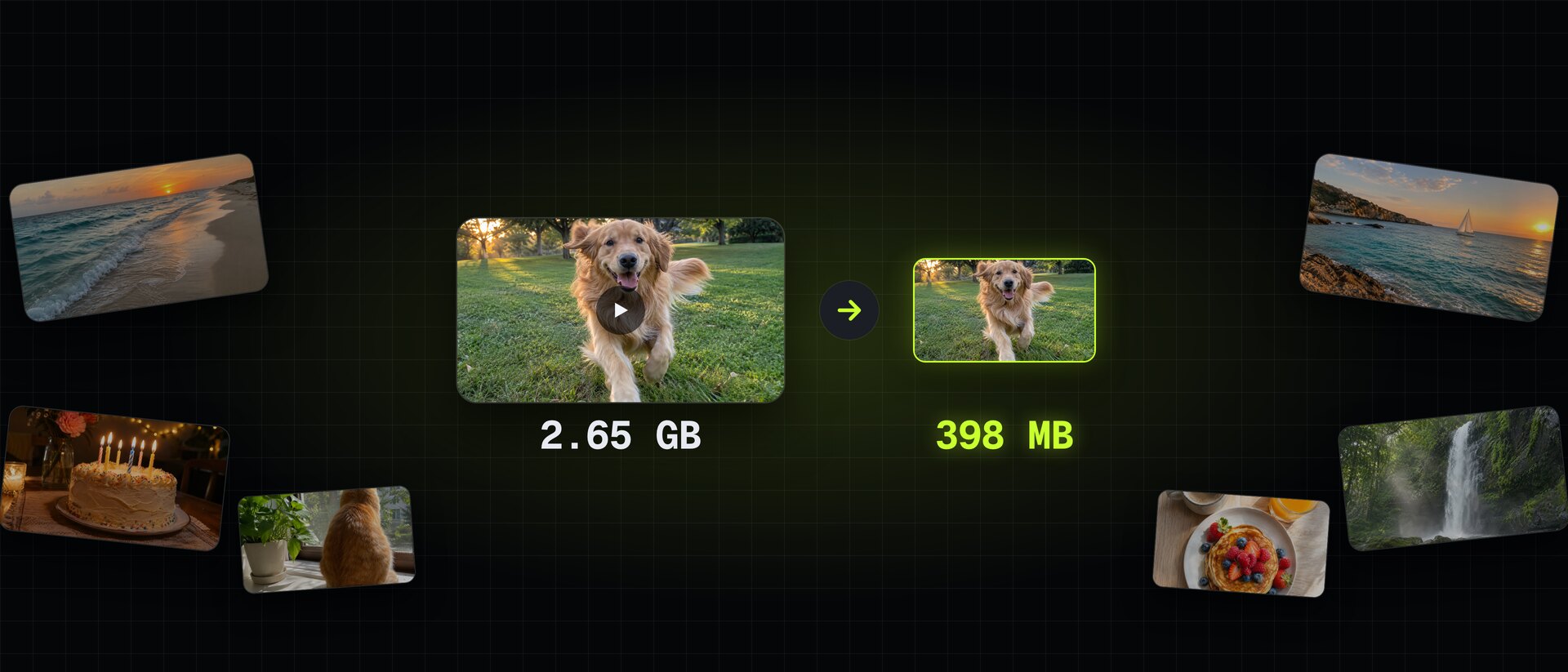

"iPhone Storage Full." If you've seen that message, there's a good chance your videos are the reason. Photos and videos are usually the biggest item in your iPhone's storage, and videos take far more space than photos: a single minute of 4K video can take a few hundred megabytes.
You don't have to delete your memories to get that space back. You can keep every video and make each one much smaller. Here's how.
Step 1: See what's using your storage
Open Settings › General › iPhone Storage. After a moment, you'll see a bar showing what takes the most space, with your apps listed below it. If Photos is near the top, your videos are the place to start.
Big candidates are easy to spot: long clips, anything filmed in 4K, and slow-motion videos. A birthday filmed in 4K for ten minutes can take several gigabytes on its own.
Step 2: Make your videos smaller, not gone
Most videos look just as good on a phone screen at a fraction of their size. Squish compresses them on your iPhone:
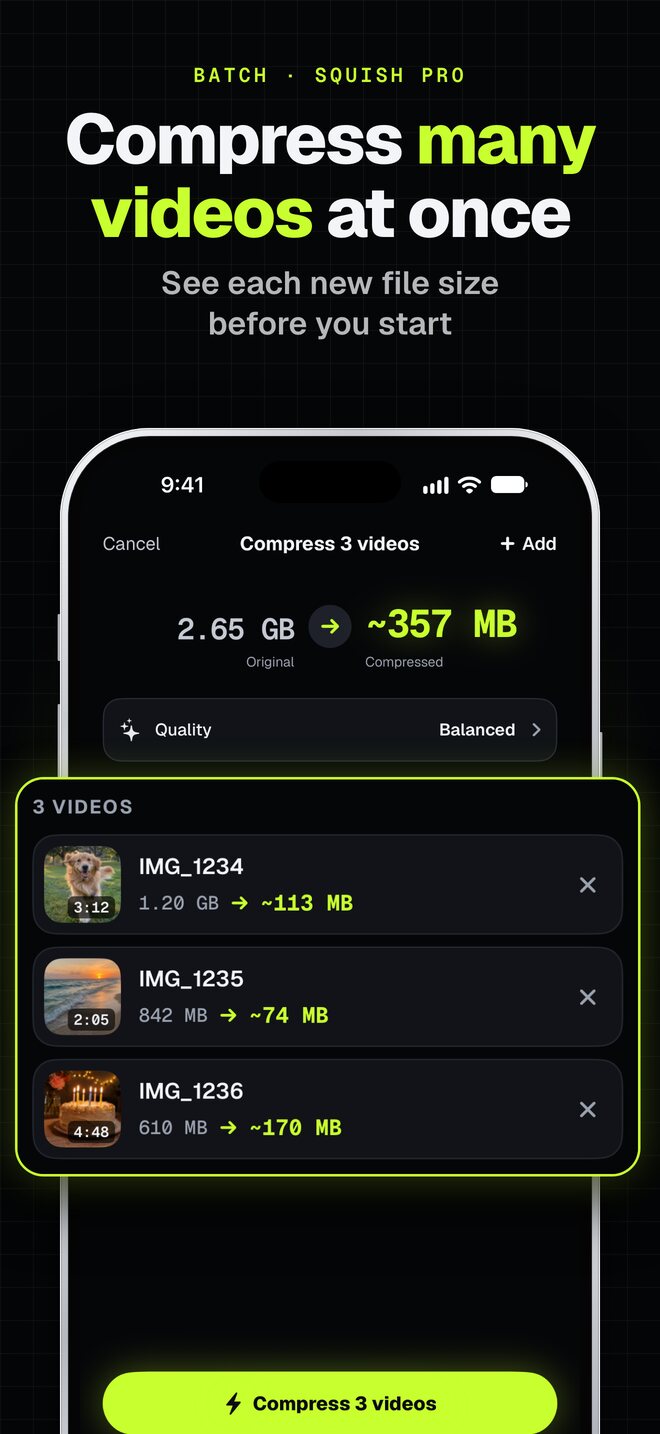
- Tap Choose videos and pick the ones you want to shrink. With Squish Pro, you can pick many at once.
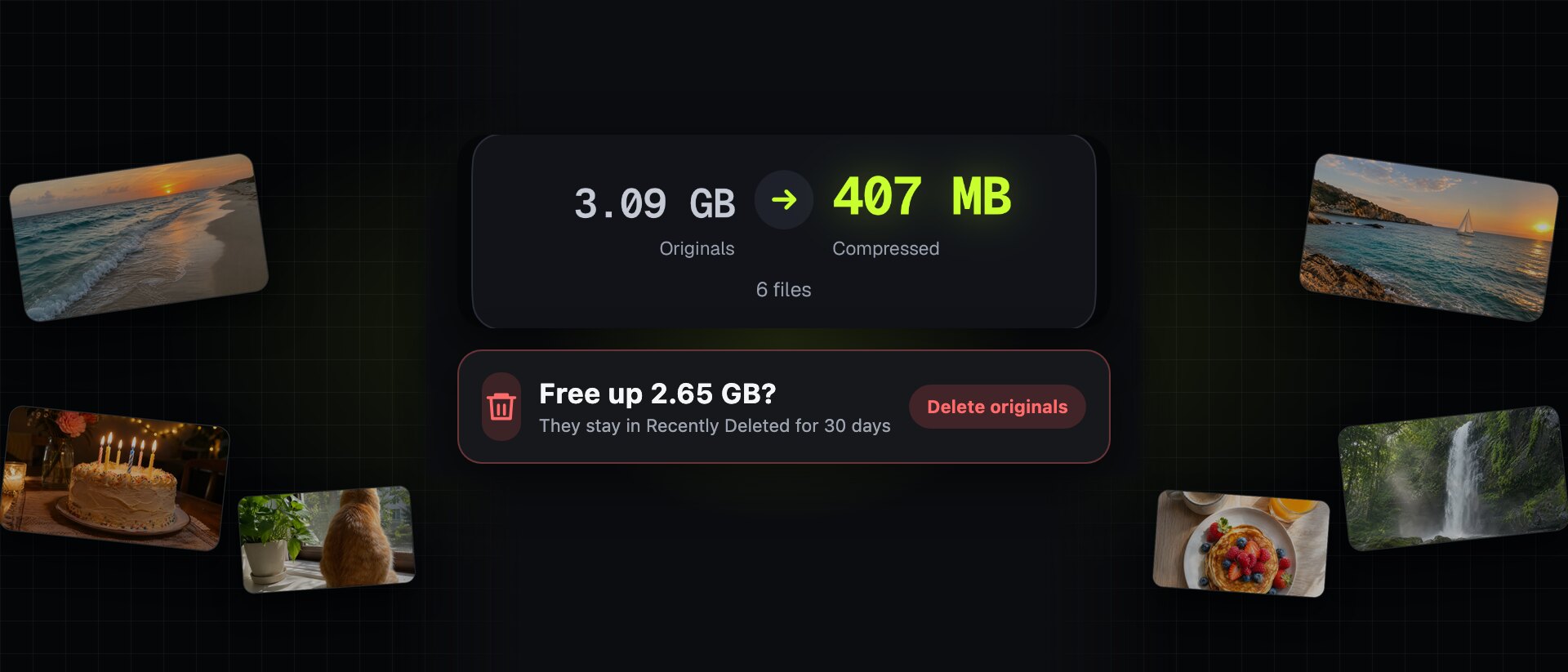
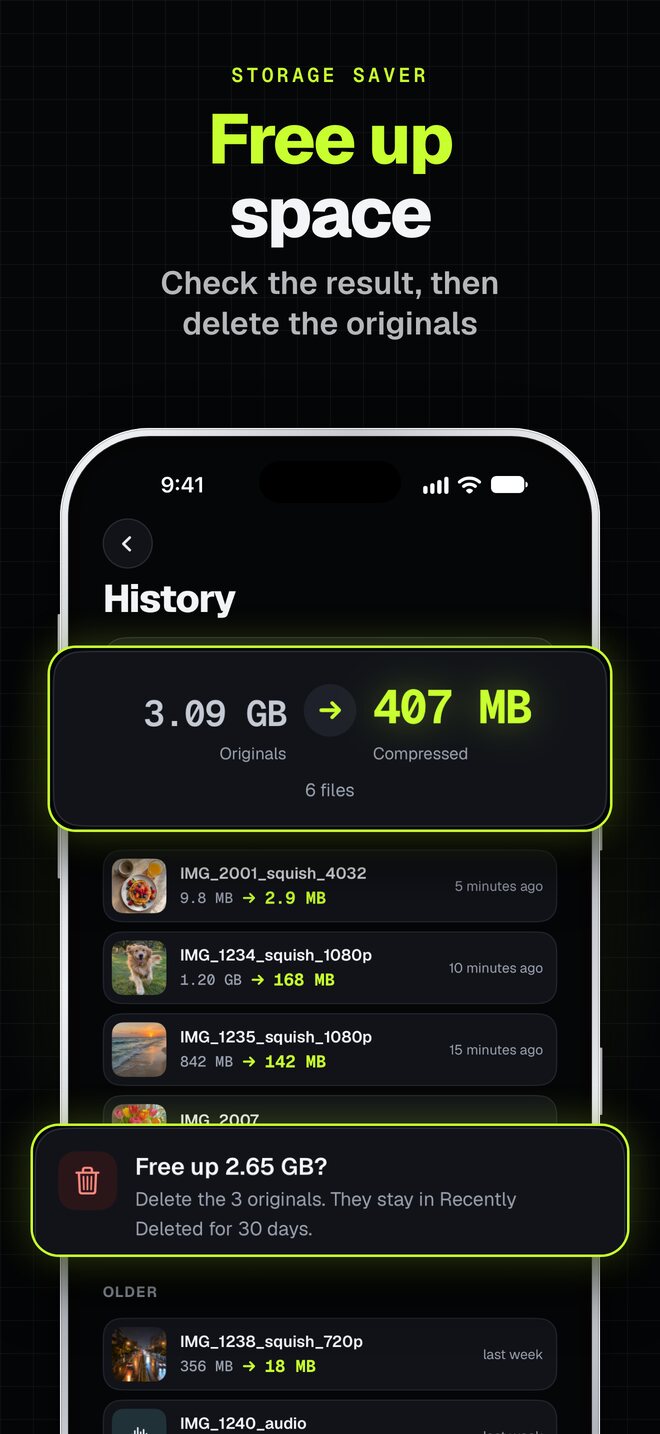
- Squish shows the total size now and the size after compressing, before you start. In our example, six files went from 3.09 GB to 407 MB.
- Tap Compress. With Balanced quality, your videos still look good at a much smaller size.
The smaller copies go to a "Squish" album in Photos. They keep the original date and location, so in your library they sit right next to the originals, in the right place on the timeline and on the map.
Step 3: Delete the originals when you're happy
Play a few of the copies first and check that they look the way you want. Then tap Delete originals in Squish. Squish asks first, then moves the originals to Recently Deleted, where they stay for 30 days, just in case.
To get the space back right away, open Photos, scroll down to Utilities and tap Recently Deleted, then delete them there. Otherwise iOS removes them for good after 30 days.
Good to know: if you use iCloud Photos, deleting a video also removes it from iCloud and your other devices. If you want to keep the full-quality original somewhere, copy it to a computer or a drive first.
Photos, too
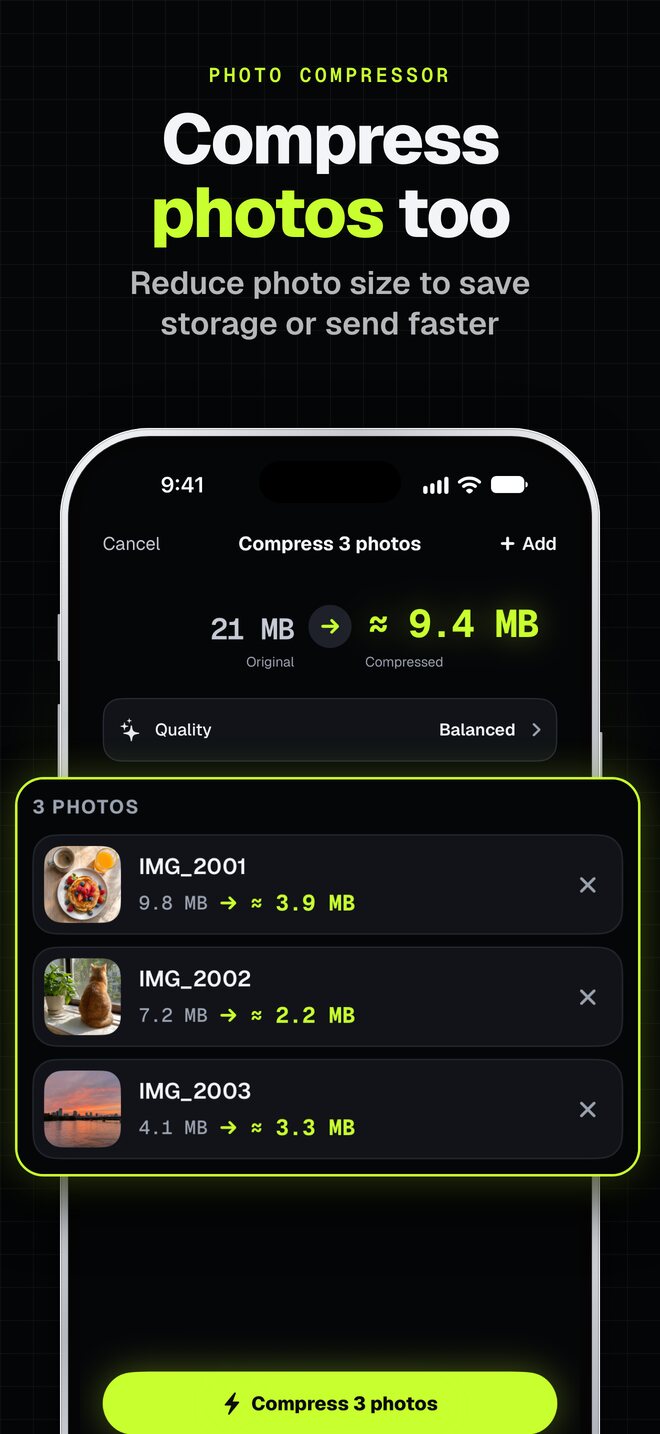
Squish compresses photos as well, one at a time or many at once. It's handy for big photo bursts or before you send a set of pictures. One thing to know: a Live Photo is saved as a still photo.
Two settings that keep your iPhone from filling up again
- Optimize iPhone Storage: if you use iCloud Photos, turn it on in Settings › Apps › Photos. Full-size photos and videos stay in iCloud, and your iPhone keeps smaller versions.
- Video format: in Settings › Apps › Camera › Formats, "High Efficiency" saves photos and videos in formats that take less space than "Most Compatible". In Record Video, you can also choose a lower resolution for everyday clips.
Try Squish
Squish is free to download: everyone can compress one video or photo at a time with Balanced quality and delete the originals afterwards. Squish Pro adds many videos at once, more quality and size options, video tools like Split and Crop, and no ads.
Nothing is uploaded, there's no account to create, and Squish never adds a watermark. Download Squish on the App Store and see how much space your videos give back. We'd love to hear your number at [email protected].