
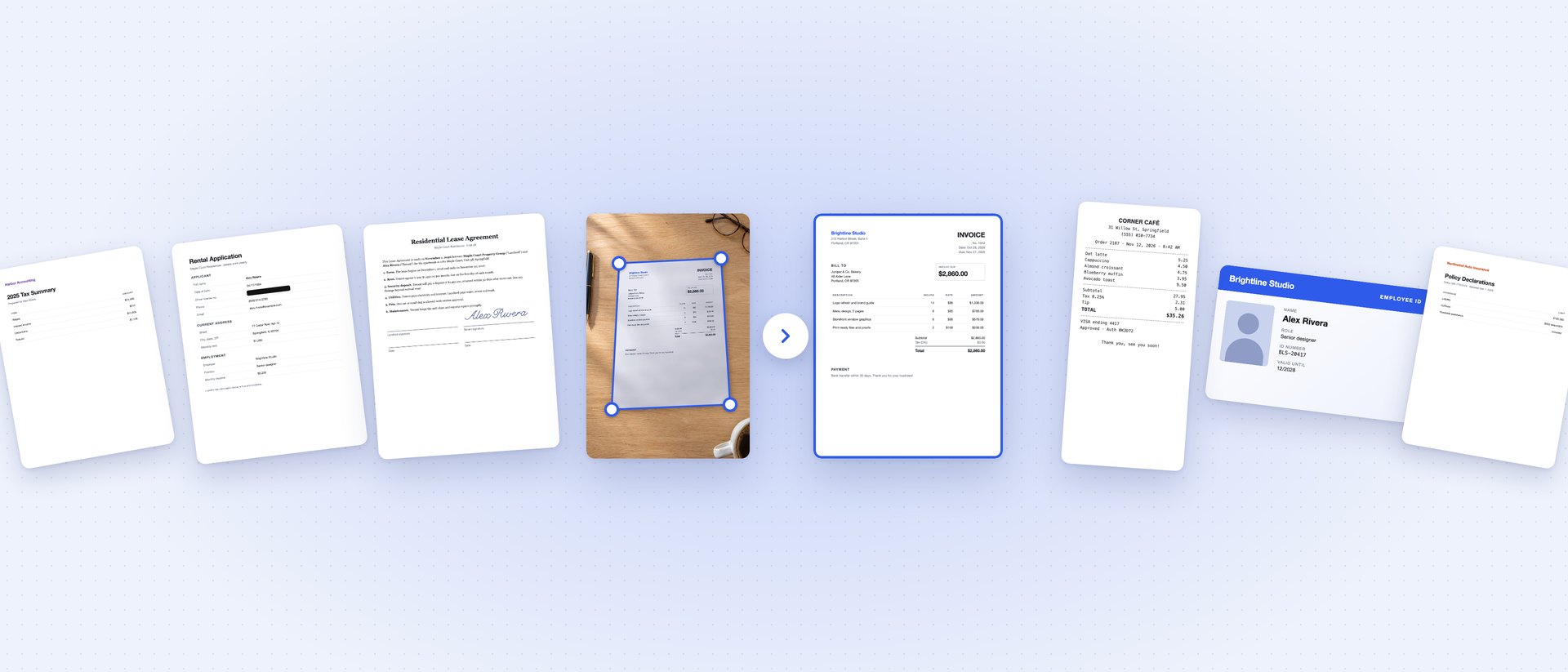
Every week brings a little more paper: a lease to sign, a receipt to file, a form that wants a copy of your ID. Your iPhone camera can turn all of it into clean PDFs in seconds, if the app behind it does the fiddly parts for you.
That's why we built Better Scanner, and it's now available on the App Store. Here's how to scan well on iPhone, and how Better Scanner helps with what comes after the scan: signing, hiding private details and copying text.
How to get a sharp scan every time
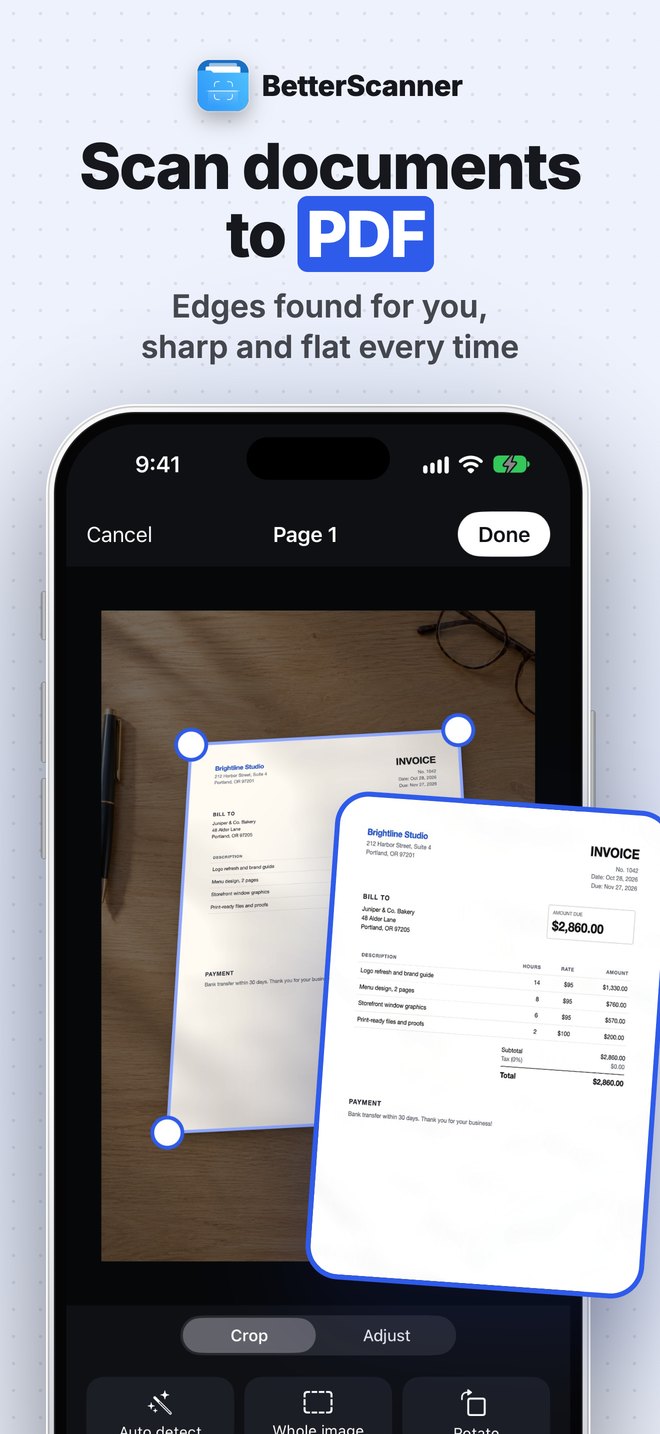
A good scan starts before you tap the shutter:
- Use a dark, plain surface. White paper on a wooden desk or a dark table makes the page edges easy to find.
- Light it evenly. Daylight from a window beats a ceiling lamp that drops your phone's shadow on the page.
- Hold the phone flat above the page. A little tilt is fine (the scanner straightens it), but don't shoot from a sharp angle.
- Pick the right filter. Color for receipts and photos, grayscale or black & white for text-heavy pages: they're smaller and easier to read.
In Better Scanner, the camera finds the page edges for you and flattens the page. You can scan one page or a whole stack in a row, then crop, rotate, reorder or delete pages whenever you like. Already have a photo or a PDF? Import it from Photos or Files.
Sign a document without printing it
The classic routine is print, sign, scan, send. You can skip the first three steps.
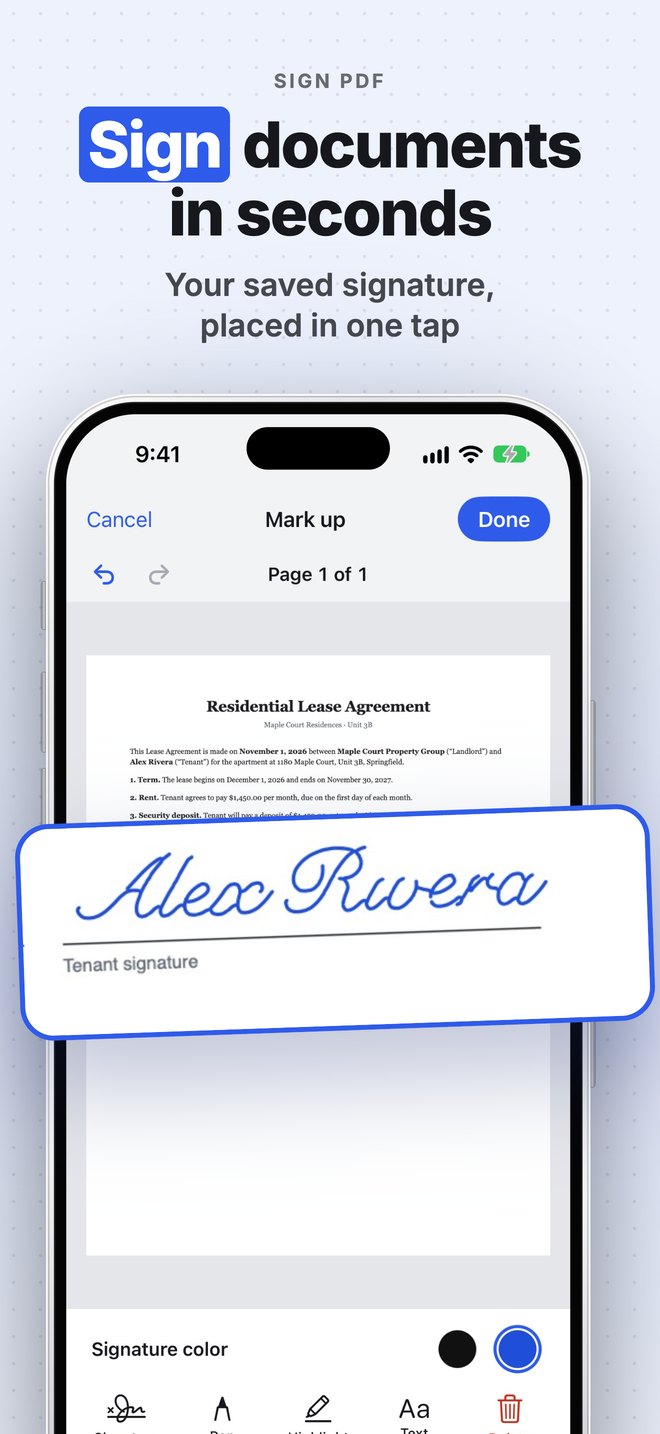
Draw your signature once and save it. Then open any document and place it on the signature line in one tap. For forms, you can also write with a pen, highlight lines and add text boxes to fill in the blanks.
Hide what's private before you share
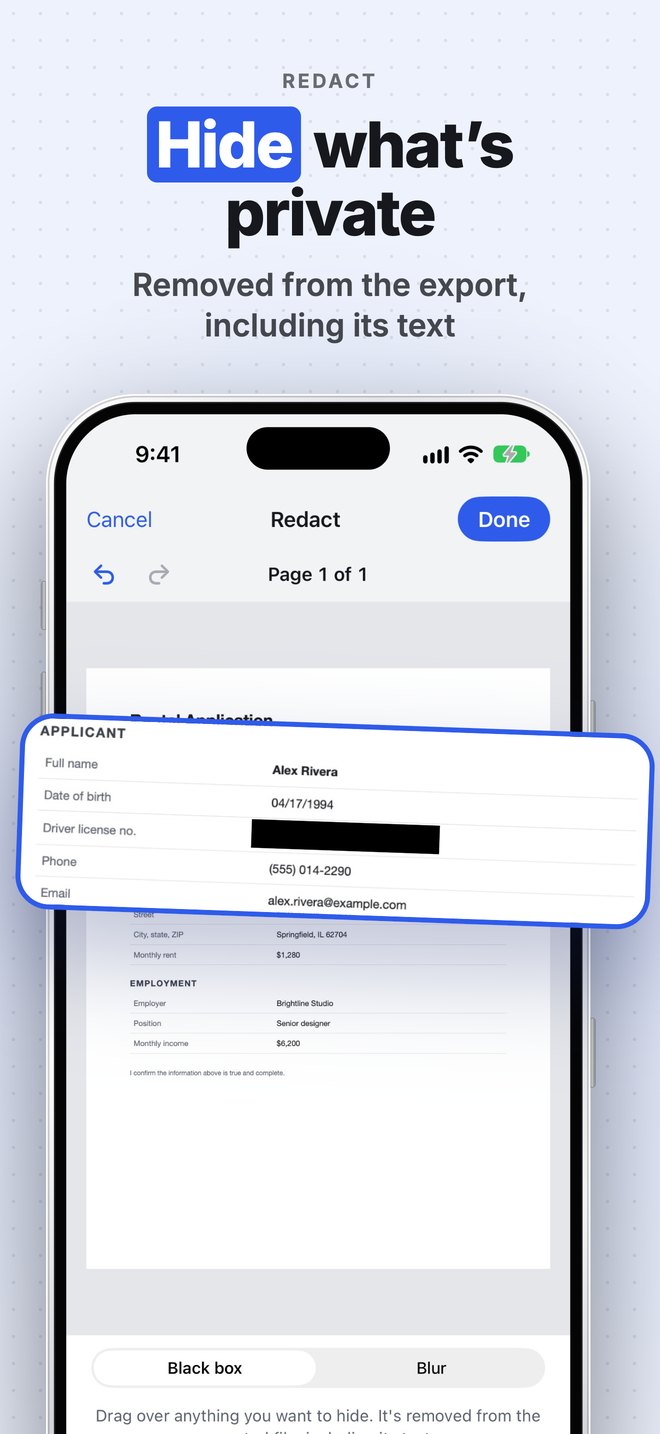
Sending a bank statement or an application to someone? You rarely need to show everything. Use Redact to cover account numbers, addresses or ID numbers with a black box or a blur.
There's a detail that matters here: in Better Scanner, the redacted words are also removed from the document's text, not just covered up. Someone who copies the text out of your PDF won't find what you hid.
Copy text from any page
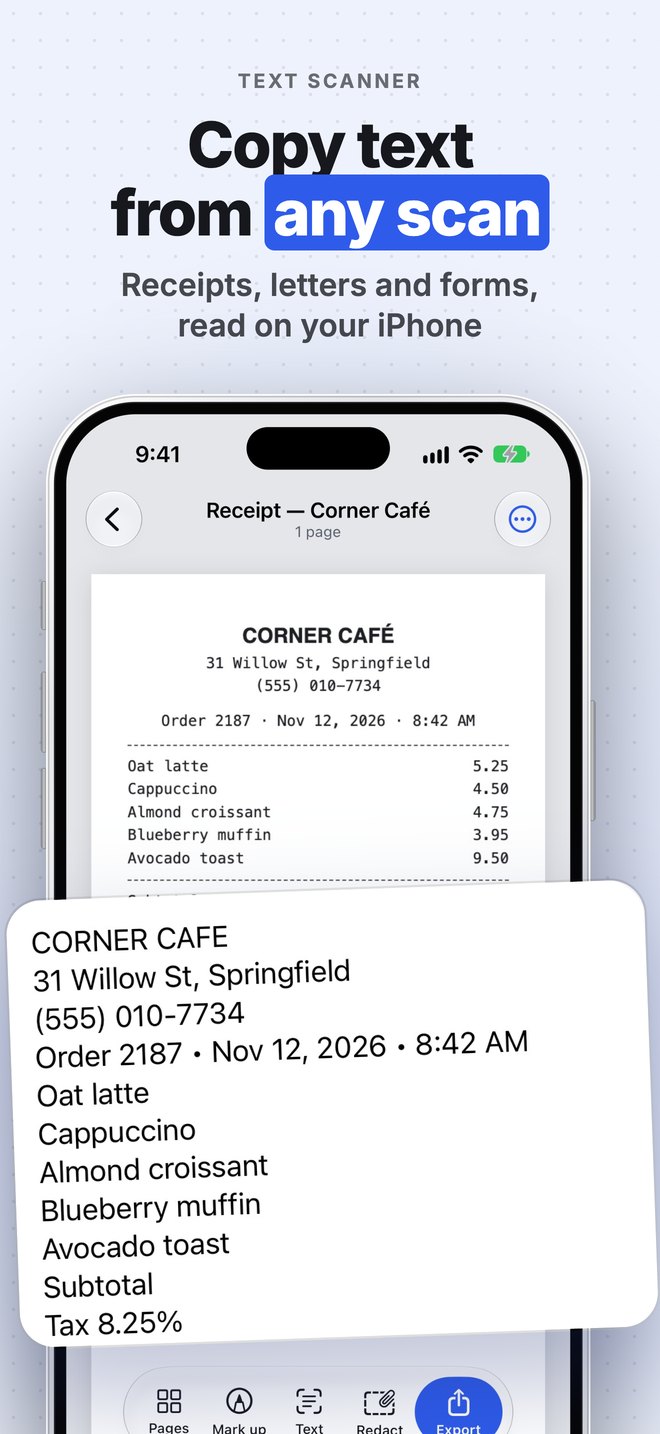
Text recognition runs right on your iPhone. Open a scan and copy its text into a message or a note, share it, or translate it (translation needs iOS 17.4 or later). Search works on the words inside your documents too, so "that receipt from the café" is one search away.
When you export, you can save a searchable PDF, so the text can be found and copied in other apps as well.
A few more things Better Scanner does
- ID cards and passports: scan the front and back of an ID card onto one page at real size, or the photo page of a passport.
- Export the way you need: PDF, JPG, Word (.docx) or plain text, and password-protected PDFs.
- Folders and widgets: sort documents into folders and keep a quick-scan widget on your Home Screen.
- Made for every screen: iPhone, iPad and the new iPhone Duo. Unfold the Duo and you see more documents at once, with the editing tools in a side panel next to the page.
- Private by design: no account needed. Your scans are kept on your device, and you can turn on iCloud sync to have them on your iPhone and iPad.
Free and Pro
Better Scanner is free to download. Everyone can scan, import, crop, use filters, organize folders and export 3 PDF or JPG files every 7 days (with a small "Scanned with BetterScanner" mark).
Pro removes the limit and the mark, and unlocks signing, markup, redaction, text recognition and translation, Word and text export, searchable and password-protected PDFs, ID card and passport modes, and iCloud sync. The yearly plan starts with a 3-day free trial.
Try it
Download Better Scanner on the App Store, scan the next piece of paper that lands on your desk, and tell us how it went. We read every message at [email protected].